My Sport Results Dashboard: A Guide to Activities and Records
Explore the My Sport Results dashboard, including its latest activity, summary totals, recent results, personal records, sidebar sections and Add button.
My Sport Results: A Guide to the Dashboard
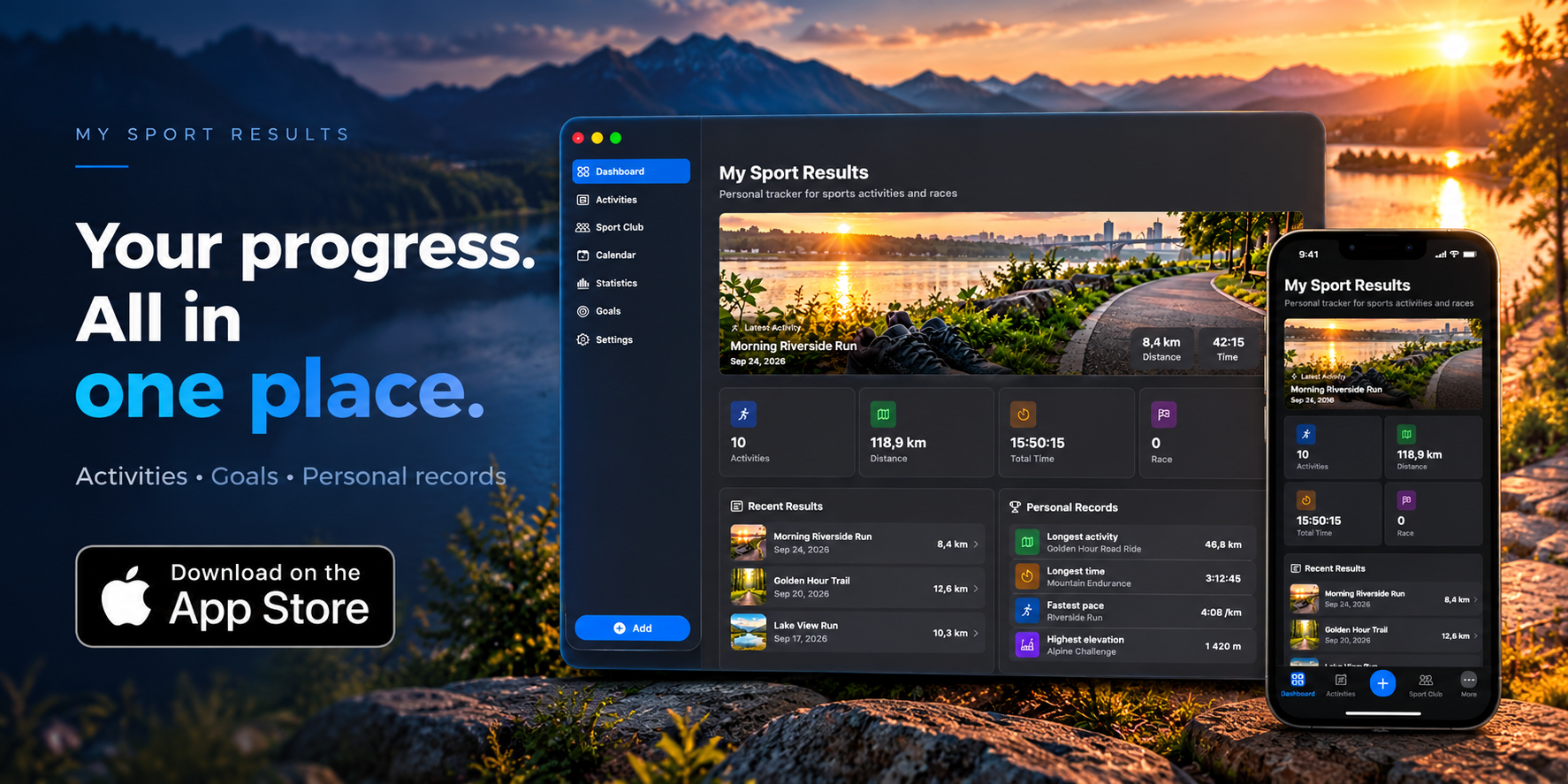
My Sport Results presents itself as a personal tracker for sports activities and races. The screenshot shows a dark-themed dashboard with a latest-activity banner, summary totals, recent results and personal records.
Review the latest activity
The dashboard’s largest panel highlights Morning Riverside Run, dated Sep 24, 2026, with a distance of 8.4 km and a time of 42:15.
The background image shows running shoes beside a riverside path, with sunlight reflected on the water. The activity title and date appear at the lower left, while distance and time sit at the lower right, making the key details easy to scan.
Check the summary totals
Four cards beneath the banner display:
| Metric | Displayed value |
|---|---|
| Activities | 10 |
| Distance | 118.9 km |
| Total Time | 15:50:15 |
| Race | 0 |
The screenshot does not show a date-range selector or reporting period, so the scope of these totals needs confirmation [verify].
Scan results and records
The Recent Results panel shows an entry for the featured run, including a thumbnail, date, activity type and distance. A right-facing chevron provides a visible navigation cue, although the destination screen is not shown.
Alongside it, Personal Records highlights a Longest activity entry: Golden Hour Road Ride, at 46.8 km. Both panels continue below the visible window area, so further entries cannot be reliably described.
Navigate from the sidebar
The left sidebar keeps the main sections together:
- Dashboard, currently selected
- Activities
- Sport Club
- Calendar
- Statistics
- Goals
- Settings
A blue Add button is positioned at the bottom. It is the visible starting point for adding an item, but the screenshot does not reveal the form, supported entry types or required fields [verify].
A practical starting workflow
Start with the latest-activity banner to review the highlighted session, then scan the four summary cards for an overview. Next, compare the visible recent result with the personal-record entry. Use the sidebar to select another section, or the Add button to begin an entry.
This screen establishes the dashboard’s role as an overview. Activity-entry steps and the contents of the other sections would need additional screenshots or documentation to explain accurately.