User manual
Original Tegisoft documentation.

Project Snippets — User Manual
This guide covers the snippet context menu documented on the Project Snippets help page. The page identifies this menu as a feature introduced in version 1.7.3.
Open the context menu
- Select a snippet in the snippet list.
- Right-click the selected snippet.
- Choose an action from the context menu.
On a Mac trackpad, use a secondary click (usually a two-finger click). You can also Control-click the snippet.
Copy a snippet
- Select the snippet you want to copy.
- Open its context menu.
- Choose Copy.
Delete a snippet
- Select the snippet you want to remove.
- Open its context menu.
- Choose Delete.
Check that you have selected the intended snippet before choosing Delete. The help page does not explain whether deletion requires confirmation or can be undone.
Recognize the controls
The help-page screenshot shows a selected snippet named Toolbar, with a .swift language label. Its context menu contains Copy and Delete.
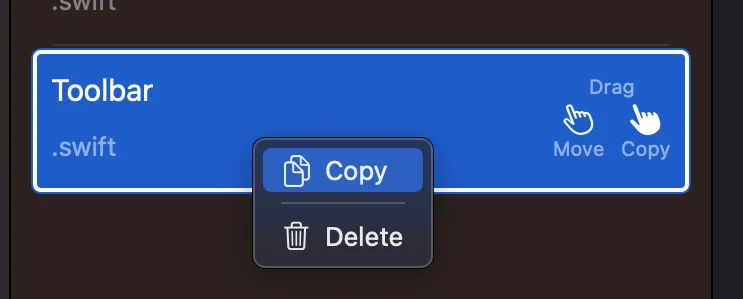
The screenshot also includes Drag, Move, and Copy labels on the snippet card. The page does not describe how those drag controls work.
Documentation scope
The source page documents only this context-menu workflow. It does not provide instructions for creating or editing snippets, organizing projects, searching, importing or exporting, or configuring the application.
---
Source: Tegisoft — Project Snippets User manual, accessed 21 October 2026. Screenshot hosted by Tegisoft. The trackpad and Control-click instructions are standard macOS guidance added for clarity.