Project Awake User Manual
Keep your Mac awake for a little longer.
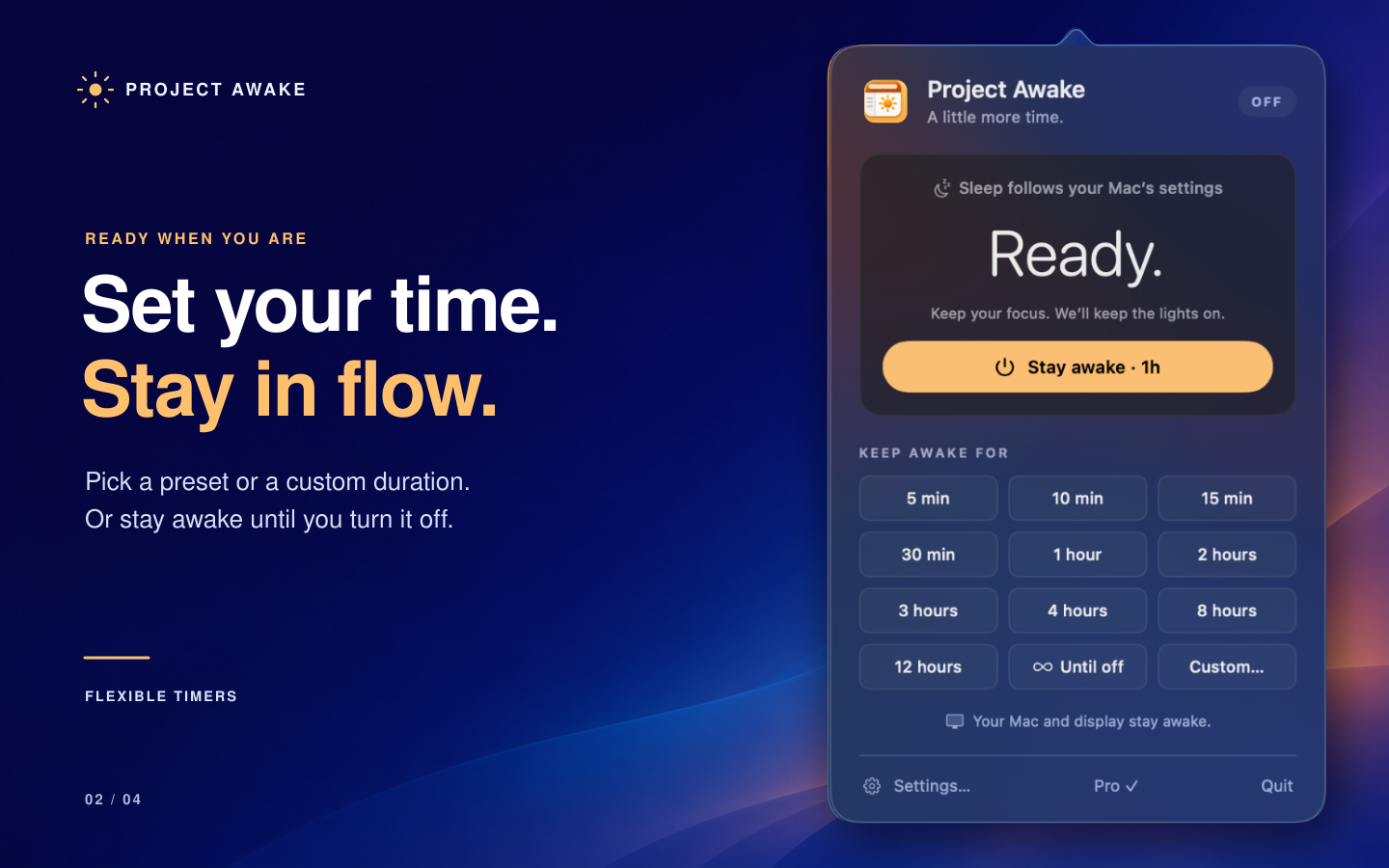
Project Awake is a macOS menu bar utility that prevents automatic sleep during a session. Choose a timer for a presentation, a download, or a long-running task, then let your Mac return to its normal sleep behavior when the session ends.
Project Awake requires macOS 14 or later and supports Apple silicon and Intel Macs. No app account is required.
Start your first session
- Open Project Awake from Applications.
- Click the sun icon in the menu bar at the top of your screen.
- Choose 5 min, 10 min, 15 min, 30 min, or 1 hour.
- Leave Project Awake running while you work. You can close its controls by clicking elsewhere.
- To stop early, open the controls and click End session.
Project Awake lives in the menu bar and has no Dock icon. The sun icon is where you open its controls and settings.
Explore the manual
| Page | What you will learn |
|---|---|
| Sessions and everyday use | Start and stop sessions, choose durations, understand the timer, and quit the app. |
| Settings and controls | Configure display sleep, battery behavior, launch options, menu bar appearance, and a keyboard shortcut. |
| Free and Pro | Compare features, unlock Pro, and restore a purchase. |
| Shortcuts and automation | Use Apple Shortcuts and URL commands to control sessions. |
| Troubleshooting and common questions | Find the app, resolve common problems, and contact support. |
What staying awake means
During a session, Project Awake prevents your Mac from sleeping because it is idle. By default, it also keeps the display awake. You can allow the display to sleep while the Mac continues working.
Project Awake respects deliberate sleep, shutdown, and the normal sleep behavior when a MacBook lid closes. It does not keep a MacBook working with its lid closed or guarantee that another app will finish its work.
Privacy
Project Awake stores preferences locally on your Mac. It has no app accounts, advertising, analytics, or cloud synchronization. Apple handles optional Pro purchases.
You can read the app's privacy policy in Settings → About → Privacy Policy. For help, visit Tegisoft Support.