Settings and Controls
Open the menu bar controls and click Settings…. Settings contains General, Controls, Pro, and About tabs.
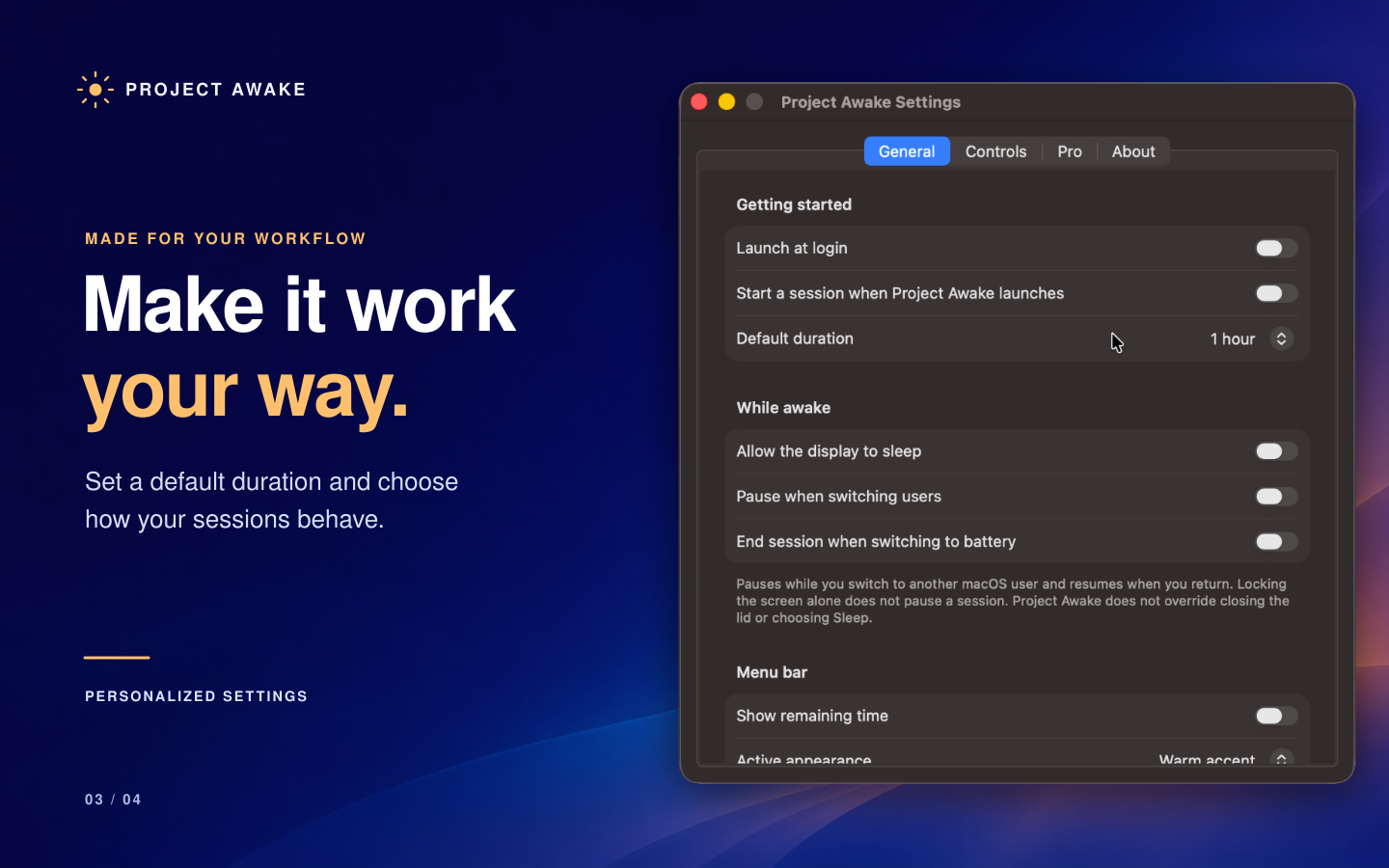
General
Launch at login
Enable Launch at login to open Project Awake when you log in to your Mac. If macOS requires approval, follow the Allow Project Awake in Login Items… button and approve the app in the settings macOS opens.
Launching the app does not by itself start a keep-awake session. Automatic session start is a separate Pro option.
Start a session when Project Awake launches
Requires Pro.
Enable this option to start a new session with your default duration when the app launches. Combine it with Launch at login if you want a session to begin when you log in.
Default duration
Choose the duration used by the main Stay awake button and toggle controls. Pro adds longer presets and Until turned off.
Changing the default applies to future sessions. It does not change the remaining time of a session already running.
Allow the display to sleep
Enable this option when you want your Mac to keep working but do not need the screen to remain lit. The display can then sleep according to macOS settings while Project Awake keeps the system awake.
Leave it off when you need the display to remain awake, such as during a presentation. Changing this option also affects the current session.
Pause when switching users
Enable this option to pause a session when you switch to a different macOS user. While paused, Project Awake allows sleep and freezes the remaining time. It resumes when you return to your user session.
Locking the screen alone does not trigger this pause. This setting is specifically for switching macOS users.
End session when switching to battery
Enable this option to end the current session when your Mac changes from external power to battery, such as when you unplug a MacBook.
This option responds to the power-source change. It does not block you from manually starting another session while on battery. Reconnecting power does not automatically restart the session that ended.
Show remaining time
Requires Pro.
Show the session countdown next to the sun icon in the menu bar. You can always see the timer inside the controls, including in the free version.
Active appearance
Requires Pro.
Choose how the menu bar icon looks while a session is active:
- Warm accent — a colored active icon.
- Filled icon — a monochrome filled icon.
- Indicator dot — an icon with a small activity indicator.
Controls
Toggle with a left-click
Enable this to start or stop a session with an ordinary click on the sun icon. When enabled, right-click or Control-click to open the controls.
Leave it off to use the default behavior: click to open controls, right-click to toggle.
Keyboard shortcut
Requires Pro. No shortcut is assigned initially.
- Find Toggle Project Awake in the Controls tab.
- Click the shortcut recorder.
- Press a key combination that includes Command or Control.
- Use that combination from another app to start the default session or stop the current one.
Press Escape while recording to cancel. Press Delete while recording to clear the shortcut. If Project Awake reports a registration error, choose a different combination.
Shortcuts and scripting
The Controls tab includes Open Shortcuts and a copyable URL command example. All Shortcuts actions and URL commands require Pro. See Shortcuts and automation for instructions.
Pro and About
Use the Pro tab to view the upgrade, purchase it, or restore an existing purchase.
Use About to find the app version, open its privacy policy, or contact support.
Next: Free and Pro